
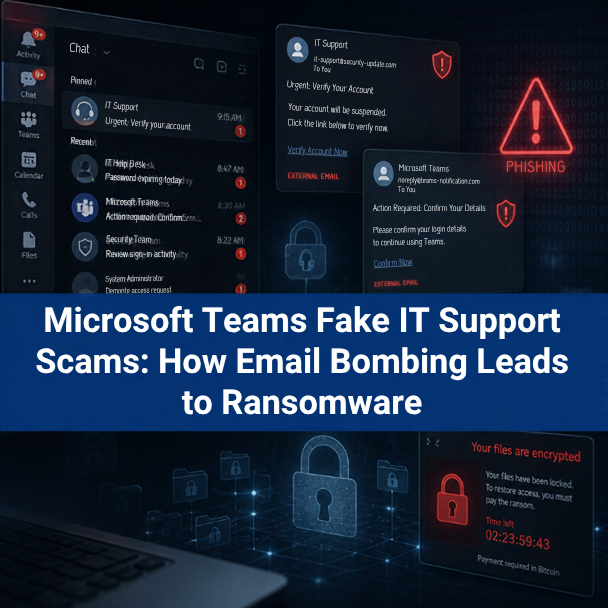
Attackers are posing as IT support on Microsoft Teams to get employees to hand over remote control of their computers. Arctic Wolf Labs tied the tactic to more than 400 incidents. The attack usually starts with email bombing, a flood of hundreds of subscription emails, followed by a Teams chat or call from fake “IT Support (Internal)” staff. To stop it, restrict Teams external access to approved domains, lock down remote support tools, and require employees to verify any unexpected IT request through a known internal channel.
Key Takeaways
- Arctic Wolf Labs published research on October 26, 2026, covering more than 400 incidents of fake IT support contact through Microsoft Teams external chat.
- The attack exploits trust, not a software flaw. Teams external access is on by default, so outsiders can message your employees.
- A typical chain runs from email bombing to a Teams chat, a voice call, and a remote session in Quick Assist or another remote tool. Some chains reached malware execution in under 15 minutes.
- Some intrusions ended in data theft and ransomware, including Chaos ransomware in a related campaign tracked by Sophos.
- The fastest fixes are an external domain allow-list in Teams, blocking unmanaged accounts, and restricting Quick Assist and unapproved remote tools.
- Employees need one simple rule: real IT never asks for remote access through an unexpected Teams message. Verify first, using a known number.
By Adam Adil Harchaoui | Published by NVITS | Updated October 2026
Most security training teaches employees to distrust email. Far fewer teach them to distrust a Teams message. That gap is exactly what this campaign targets. A message that appears inside Teams, from a name like “IT Service Desk,” feels like part of the workday.
The attackers do not need to break into your Microsoft 365 tenant first. They create their own tenant, give it a help-desk name, and message your staff from the outside. Then they wait for one employee to accept a call and share a screen.
This guide explains how the attack works, why it succeeds, and the specific Teams and endpoint settings IT directors should review this week. We wrote it for organizations in Reno, Sparks, and Carson City that run Microsoft 365. However, the controls apply to any Teams environment.
What Arctic Wolf Found
On October 26, 2026, Arctic Wolf Labs reported more than 400 incidents in which threat actors abused Microsoft Teams external chat to pose as IT support. The researchers described “the same throwaway tenants, the same ‘IT Support (Internal)’ display names, the same remote-access tools, and increasingly, the same payload domains” across those cases.
Several patterns stood out:
- Throwaway tenants. In 30 to 40 percent of cases, attackers used default
onmicrosoft.comdomains with help-desk names such ashelpdeskteam365oritcoreportal, according to The Hacker News. - Cheap paid domains. Among paid domains, about half used the
.toptop-level domain and about 40 percent used.com. - Fake internal names. Display names included “IT Support,” “HelpDesk Supervisor,” and “Enterprise IT & Security (Internal).” Newer versions add the target company’s name to look legitimate.
- Automation. Attackers contacted multiple employees at the same organization within about five minutes, which Arctic Wolf assessed as likely automated.
- Speed. Customer-reported attack chains reached payload execution in under 15 minutes.
According to GBHackers, at least three of the investigated compromises ended in encryption. Separately, Sophos linked a related campaign, tracked as STAC4749, to Chaos ransomware.
This is not a new idea. In 2024, Microsoft documented the same chain in attacks by the group it tracks as Storm-1811, which led to Black Basta ransomware. What has changed is the scale and the polish.
How the Fake IT Support Attack Works
The attack has five stages. Each one looks harmless on its own, which is why it works.
Stage 1: Email Bombing
First, the attacker signs the victim’s email address up for hundreds of newsletters, forums, and subscription services. Within minutes, the inbox fills with confirmation emails. The employee cannot find real messages and starts to feel that something is wrong.
Stage 2: The “Helpful” Teams Message
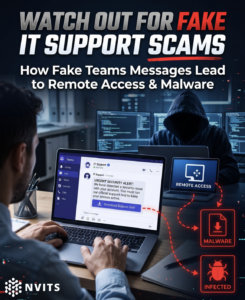
Soon after, a Teams chat arrives from “IT Support (Internal)” or a friendly name like “IT Service Desk, Matt.” The message says IT noticed the spam problem and can fix it. Because the email flood is real, the offer sounds reasonable.
Teams does show an “External” label on these messages. However, the “(Internal)” tag in the display name is designed to talk the user past that warning.
Stage 3: The Voice Call
Next, the attacker asks to move to a Teams voice call. Live conversation adds pressure and makes the request feel personal. Many organizations train staff to spot phishing links, but few train them to question a voice on a call.
Stage 4: Remote Access
On the call, the attacker walks the employee through starting Quick Assist, the remote help tool built into Windows. The employee reads back a six-digit code and approves screen sharing and control. Arctic Wolf found Quick Assist was the most common tool, followed by AnyDesk, ScreenConnect, TeamViewer, Atera, and others.
Quick Assist is attractive to attackers because it is signed by Microsoft, already installed, and familiar to many users. Nothing about it looks like malware.
Stage 5: Payload and Persistence
Once in control, the attacker works fast. In one case Arctic Wolf investigated, the fake helpdesk worker had the victim run a PowerShell command that downloaded an installer from Microsoft Azure Blob Storage. The installer unpacked a Python implant that queried Active Directory for every user and computer, then sent the results to the attacker’s server.
From there, attackers install a second remote tool for backup access, move toward domain controllers, steal data, and in some cases deploy ransomware. Notably, attackers often avoid pasting links in Teams, since that would trigger Microsoft’s link scanning. Instead, they browse to the payload themselves during the remote session.
Why This Attack Works So Well
The fake IT support scam succeeds because every tool it uses is legitimate. Teams is a trusted business app. Quick Assist and ScreenConnect are real support tools. The email flood is a real problem. As a result, traditional defenses that look for malicious attachments or known bad files have little to catch in the first ten minutes.
The attack also exploits a default setting. Microsoft Teams external access, also called federation, is turned on unless an administrator restricts it. Most organizations never made a deliberate choice to let any Microsoft 365 tenant in the world message their staff. They simply inherited the default.
Finally, the attack targets the people least likely to question IT. Busy employees want the spam problem fixed. When “IT” offers help at the exact moment they need it, saying yes feels responsible, not risky.
What Is Email Bombing, and What Should Employees Do?
Email bombing is an attack that floods an inbox with hundreds or thousands of messages in a short time. The messages are usually real subscription confirmations, so spam filters often let them through. In this campaign, email bombing serves as a setup. It creates a problem that the fake IT support caller then offers to solve.
If an employee’s inbox suddenly fills with sign-up emails, they should:
- Not click “unsubscribe” on dozens of messages. Some links in the flood may be malicious, and the volume will keep coming anyway.
- Report it to IT through the normal channel, such as the helpdesk phone number or ticket portal.
- Expect that someone may contact them claiming to help. Treat any unrequested Teams chat or call about the spam as suspicious.
- Never share a Quick Assist code or install software for someone who contacted them first.
On the IT side, Microsoft 365 administrators can tighten bulk email filtering and set up mail flow rules to slow the flood. More importantly, the security team should treat an email bombing report as a possible precursor to a social engineering attack and watch that user’s account closely.
Microsoft Teams Settings to Change This Week
Arctic Wolf and Microsoft’s external access documentation point to the same core controls. Review each one in the Teams admin center.
| Setting | Recommended Change | Why It Matters |
|---|---|---|
| External access (federation) | Switch from “allow all” to “Allow only specific external domains,” and list your real partners | Stops unknown tenants from starting chats with your staff |
| Unmanaged Teams accounts | Turn off chat with unmanaged (consumer) Teams accounts, or at least block them from starting conversations | Removes another anonymous contact path |
| Trial-only tenants | Confirm ExternalAccessWithTrialTenants is set to Blocked (Microsoft’s current default) | Throwaway trial tenants are cheap to create |
| Security team domain blocking | Enable “Allow my security team to manage blocked domains” | Lets your SOC block attacker domains through Defender quickly |
| Quick Assist | Remove it where unused, or restrict it to IT staff | Takes away the attacker’s favorite tool |
| Remote monitoring tools | Allow only the remote tools your IT provider uses, and block the rest | Stops attackers from installing AnyDesk or ScreenConnect as backup access |
Before you lock down external access, list the partners, vendors, and clients your teams actually chat with. An allow-list that blocks a key customer will get reversed quickly. A short discovery step avoids that.
Detect the Attack Before the Employee Responds
Prevention will not stop every attempt, so detection matters. Arctic Wolf notes that its alerts most often fire at the Teams “ChatCreated” event, when an external party first opens a chat. That is before the employee replies.
Your monitoring should connect these signals:
- A new external Teams chat from an unfamiliar tenant, especially one with an IT-themed name
- A sudden spike in inbound email to the same user
- Quick Assist or a new remote access tool launching on that user’s device
- PowerShell activity or silent MSI installs shortly after
- New Active Directory queries or logins to servers the user never touches
Each signal alone can look routine. Together, within 15 minutes, they describe this exact attack. A managed SOC that correlates Teams, identity, email, and endpoint data can catch that pattern and isolate the device. Managed endpoint detection and response (EDR) adds the ability to stop the PowerShell and installer stage automatically.
Train Employees on One Simple Rule
Technology controls reduce exposure. Still, the final decision often rests with one employee on one call. Give your staff a rule they can remember under pressure:
Real IT will never ask for remote access through a message you did not expect. Hang up and call the helpdesk number you already know.
To make that rule work:
- Publish how IT actually contacts people. Write down the channels, phone numbers, and names your IT team or IT provider uses. If your IT provider never initiates contact through Teams chat, say so.
- Teach the External tag. Show employees what an external Teams message looks like and explain that “(Internal)” in a name proves nothing.
- Run realistic simulations. Phishing tests should include Teams messages and voice calls, not just email. Our security awareness training program covers these collaboration-tool scenarios.
- Reward reporting. Employees who report a suspicious call should hear “thank you,” even if it turns out to be real.
Strong email security also helps here by filtering more of the email bomb before it reaches the inbox.
What This Means for Regulated Organizations
For healthcare, financial, and legal organizations, this attack carries compliance consequences. A single approved Quick Assist session can give an attacker access to patient records, client files, or financial data. Under HIPAA, the FTC Safeguards Rule, and Nevada’s breach law (NRS 603A), that access may trigger breach notification duties.
Regulators and cyber insurers also ask how you control remote access and train staff. Documented Teams settings, a remote-tool allow-list, and records of social engineering training all serve as evidence that your controls work. Many cyber insurance applications now ask directly about MFA, remote access tools, and phishing training.
For organizations without a full-time security lead, a virtual CISO can review collaboration settings, set remote-access policy, and keep that documentation current.
How NVITS Helps
NVITS manages Microsoft 365, Teams, and endpoint security for organizations across Reno, Sparks, and Carson City. We review external access settings, build allow-lists with your partners in mind, lock down remote support tools, and monitor the signals that tie a Teams chat to a remote session. We can also help you write and share a clear policy on how IT will contact employees, so staff know what a real request looks like.
NVITS is locally owned and operated in Reno. NCET named us IT Support and Cybersecurity Company of the Year in 2022. We are Cybersecurity first MSP. Not private equity or national MSP backed. Locally owned and operated.
Get a 20-Point Cybersecurity Assessment
Find out whether your Teams and remote access settings would stop this attack. Our 20-point assessment covers:
- Endpoint protection
- Patch compliance
- Backup integrity and recovery testing
- Email security (SPF, DKIM, DMARC)
- MFA coverage
- Password policy
- Network segmentation
- Remote access (VPN and Zero Trust)
- User access controls
- Firewall configuration
- Wi-Fi security
- Mobile device management
- Software licensing
- Data classification
- Vendor and third-party access
- Incident response
- Security awareness baseline
- Dark web credential check
- Disaster recovery plan review
- Compliance posture (HIPAA, PCI-DSS, FTC Safeguards)
Request your 20-point cybersecurity assessment →
Frequently Asked Questions
Is the Microsoft Teams IT support scam a Teams vulnerability?
No. Arctic Wolf found no software flaw in Teams. The attack abuses external access, a normal feature that lets people in different Microsoft 365 organizations chat and call each other. Because it is on by default, attackers can message your employees from their own tenants. The fix is configuration and training, not a patch.
How can employees tell a fake IT support message in Teams?
Look for the External label, an unfamiliar organization name, or a domain ending in onmicrosoft.com or .top. Be suspicious of any unrequested message that offers to fix a problem, especially right after a flood of spam email. A name that includes “(Internal)” does not make the sender internal. When in doubt, end the chat and call your helpdesk at a number you already know.
What is email bombing?
Email bombing floods an inbox with hundreds or thousands of messages, usually real newsletter and subscription confirmations, in a short time. In this campaign, it creates a problem that a fake IT support contact then offers to fix. Employees should report the flood through normal IT channels and treat any unexpected offer of help as suspicious.
Should we turn off Teams external access completely?
Not always. Many organizations need to chat with clients, vendors, and partners in Teams. The better approach for most is to switch to “Allow only specific external domains,” block unmanaged accounts, and keep trial tenants blocked. If your teams rarely chat externally, turning external access off may be the simplest and safest choice.
Is Quick Assist dangerous?
Quick Assist is a legitimate Microsoft support tool, but attackers in these incidents used it more than any other remote tool. If your IT provider uses a different remote support product, consider removing Quick Assist or restricting it to IT staff. Also block remote tools your IT team does not use, so attackers cannot install them.
How much does it cost to protect against Teams-based attacks?
NVITS managed IT and security services run $100 to $175 per user per month. That covers monitoring, patching, endpoint protection, and helpdesk support. Managed SOC, managed EDR, security awareness training, and vCISO services are scoped based on your needs. For most organizations, the cost is small compared to recovering from a ransomware attack.
Why choose NVITS over a national IT provider?
NVITS is locally owned in Reno, and decisions about your environment are made here. You reach a person, not a ticket queue, and you work with the team that manages your systems. NCET named NVITS IT Support and Cybersecurity Company of the Year in 2022.
Related Reading
- Managed SOC
- Managed Endpoint Detection and Response
- Security Awareness Training
- Email Security Services
- Managed IT Services
About the author: Adam Adil Harchaoui, a University of Nevada, Reno alumnus and veteran of Microsoft and IGT, founded NVITS with a clear vision: to bring elite technical strategy to the local Reno business landscape. As a seasoned Cybersecurity professional, Adam recognized a growing gap between enterprise-level protection and the practical needs of regional organizations. Under his leadership, NVITS has evolved into a premier partner for Managed IT, Cybersecurity, and AI-driven solutions, ensuring that local businesses are not just staying connected, they are staying secure and ahead of the technological curve. Connect on LinkedIn →